- You can first just click on the link and see if it plays OK in your browser. If not, download the file desired (right click). I suggest you make a folder for podcasts and download to that folder.
- You should be able to identify the file and double click to open in Quicktime but if not, open from Quicktime Player directly.
- When Quicktime launches and starts to play, the screen should look like the following:
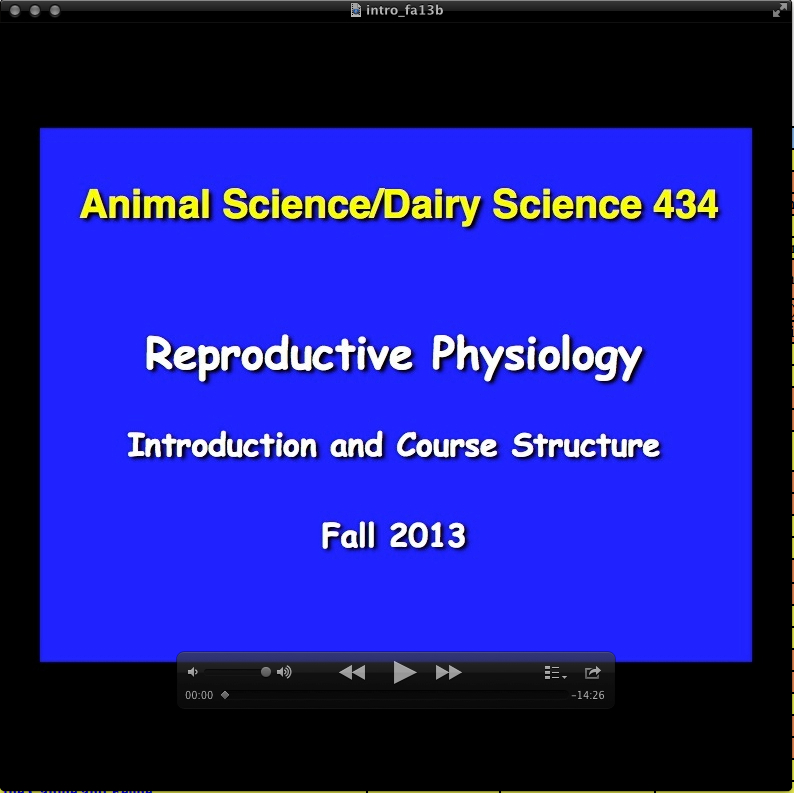
- Note the audio/play controls in the bottom of the screen. You can start stop, view chapters, and even drag the lower right of the screen to increase size if desired.
- If the slides do not advance and you only hear sound, you have not downloaded the file and/or you are not playing it in Quicktime Player. We have verified this approach works on Mac OS 10.8.4 and on PC Windows 7 and 8. You must force the file to play through Quicktime Player.